
Client Area Setup
First enable AutoSSL in the 12SSL Client Area and copy the ACME details.
1. Open the AutoSSL Product
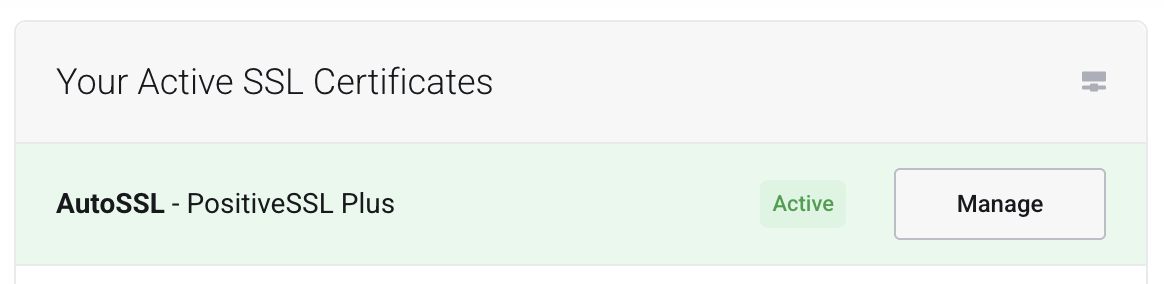
In Your Active SSL Certificates, find AutoSSL - PositiveSSL Plus.
Click Manage.
2. Start Configuration
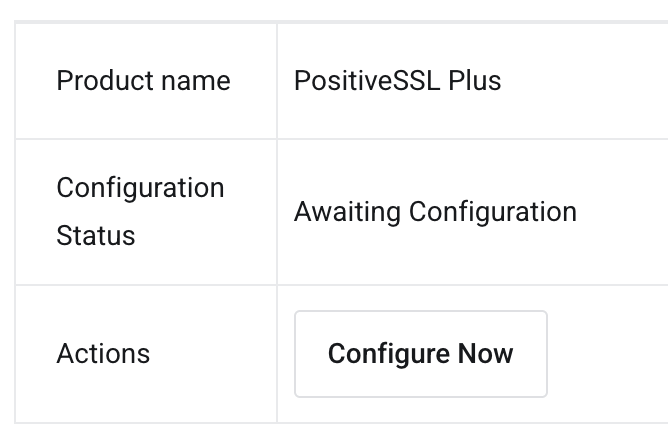
If the status is Awaiting Configuration, click Configure Now.
3. Add Domains
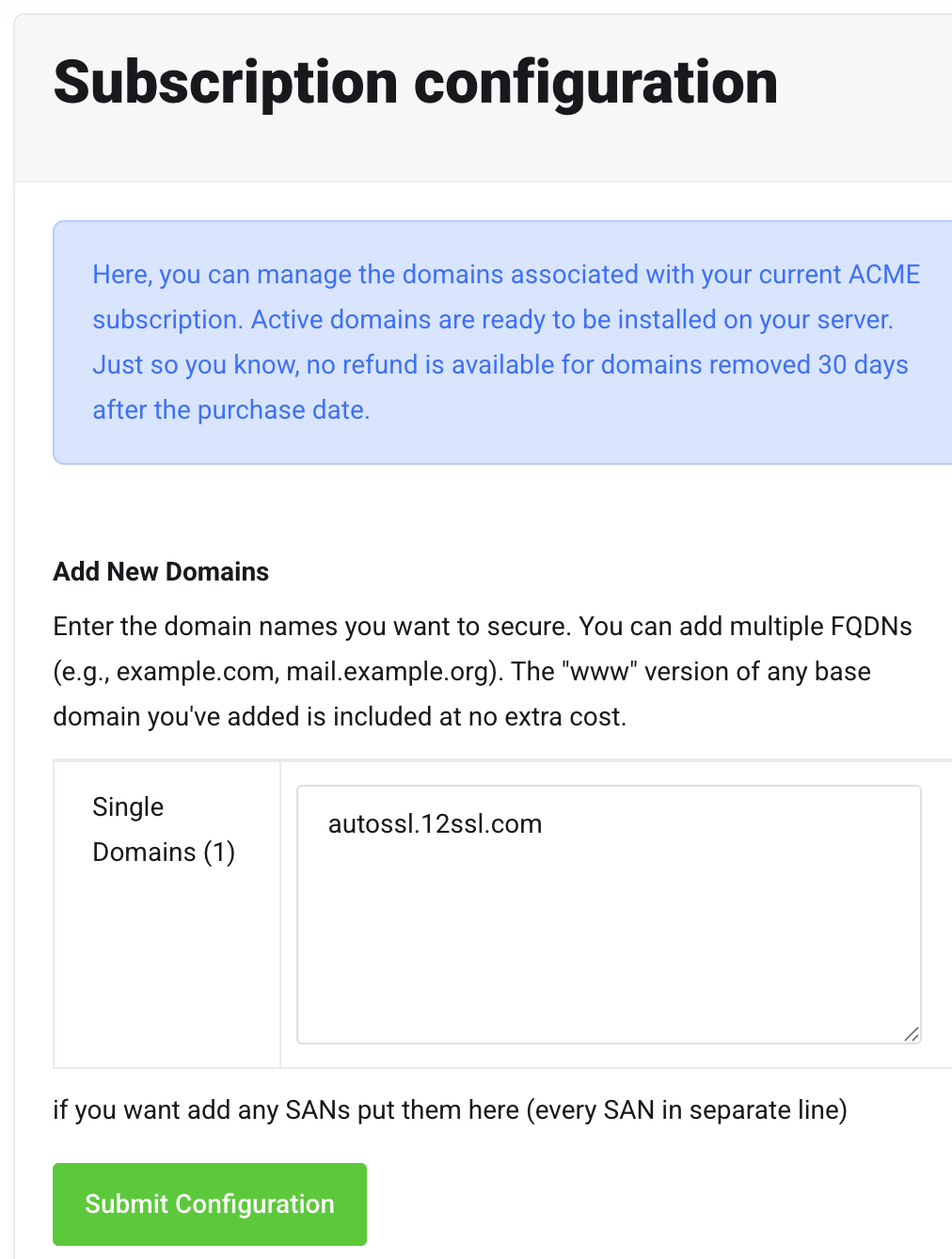
Enter the domains in Single Domains.
Enter domains based on the product type:
| Type | What to enter |
|---|---|
| Single domain | example.com and www.example.com |
| Multi-domain | Add the base domains; the matching www version is usually included |
| Wildcard | example.com and *.example.com |
TIP
For single-domain and Multi-Domain products, the www version of a base domain is usually included in the product scope. In ACME commands, still list www.example.com if you want it included in the issued certificate.
Click Submit Configuration.
4. Wait for Active Status
After submission, the status may show Pending.

Wait for processing. If it does not change, check the domain and DNS.
5. Copy ACME Details
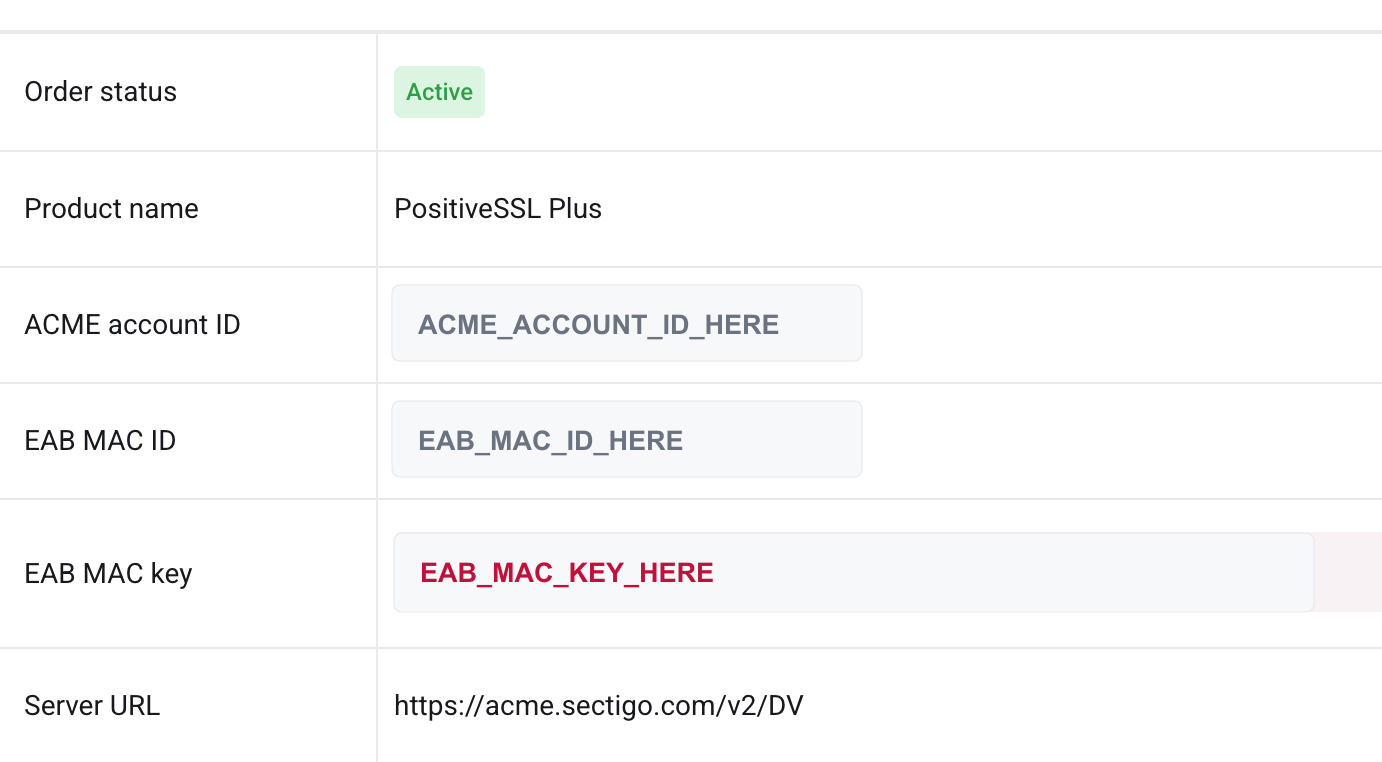
When the status becomes Active, the page will show:
- ACME account ID
- EAB MAC ID
- EAB MAC key
- Server URL
WARNING
The EAB MAC key is sensitive. Do not share it publicly.
The next commands use these values:
export ACME_SERVER="your Server URL"
export EAB_KID="your EAB MAC ID"
export EAB_HMAC_KEY="your EAB MAC key"
export EMAIL="[email protected]"
export DOMAIN="example.com"
Next, choose your server environment: